

If you’ve ever updated The Sims 4, launched your save, and immediately been greeted by missing UI, broken interactions, or Sims wearing nightmare fuel instead of clothes, you’re definitely not alone.
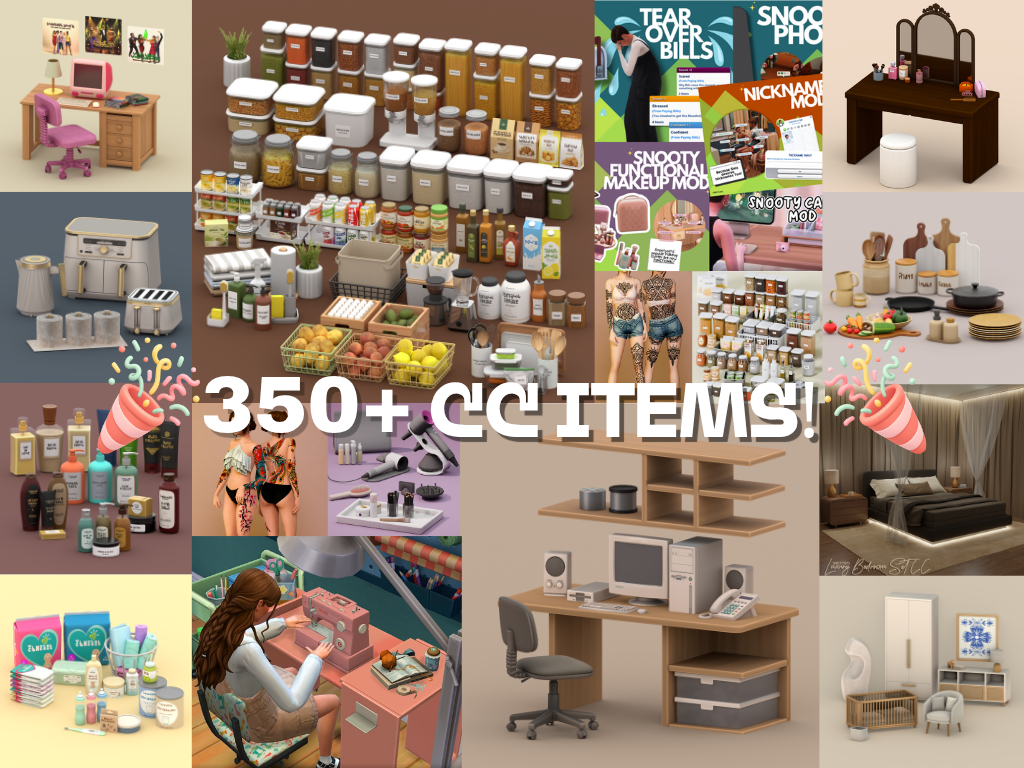
350 CC Items! Time to celebrate! 🎉
Before we begin: Thank you! We’re celebrating 3 years and 350+ CC items. As a gift, supporters can get all our free CC at once here: ALL IN ONE DOWNLOAD
With every major game update, Simmers rush to reinstall their favorite mods and CC, but skipping a few important steps can turn a simple patch into a save-breaking disaster. To help Simmers avoid that headache, The Sims Team has published a handy guide covering the safest way to update your mods, troubleshoot issues, and get back into the game without losing your progress.
Why Updating Your Mods Actually Matters
It can be tempting to jump straight into your favorite save after downloading the latest patch, but outdated mods can do more than cause a few visual glitches. According to EA, some mods can permanently alter save data, meaning simply deleting the mod later may not undo the changes it made.
Here’s What EA Recommends:
Sul Sul, Simmers,
As many of you already know, after any base game update any mods or CC you have installed are disabled as you might need to update some of them to be compatible with the newer version of The Sims 4 you’ve just installed. Below you’ll find steps on how to launch the game “vanilla,” what to look out for when playing with mods, re-enabling mods, and (If something broke) how to use the “50/50” method to find the culprit, along with other best practices.
Updating mods and CC, is it that important?
Did you know that in certain cases using an outdated mod could cause unfixable problems for your save? Some mods may even make changes to your game that persist after the mod is removed, so be sure to check any elements of the game that a mod you used may have affected. If (for example) you used a mod to add Lot traits to your neighbor NPC Sim, removed playmats, or installed any food related mods, are the changes they made still present after removing the mod?
Before you update
- Back up all of your stuff. Copy these 2 directories to a safe spot, like your desktop:
- Documents\Electronic Arts\The Sims 4\Saves
- Documents\Electronic Arts\The Sims 4\Mods
- Want some extra help here? Check out our full blog on backing up and restoring saves here for more info.
- Note your mod list. Have a lot of mods? A method of organizing your mods may be worth looking into, a simple text file or spreadsheet with the names of your mods and their creators might save you a ton of time later.
- Close the game and your mod manager (if you use one).
After the base game update
- Launch once with no mods or CC (vanilla).
Mods and CC are disabled by design after updates – this is normal.- Hop into Live Mode for a minute.
You’re just checking that the game runs on the new patch version.- Exit the game WITHOUT saving.
Don’t save a modded game while mods are off, or the game will strip most modded content (this mostly impacts mods that have separate .cfg files)- Clear cache: delete localthumbcache.package (in Documents\Electronic Arts\The Sims 4) whenever you change mods.
- Re-enable mods/CC.
Under Game Options – Other – Enable Custom Content and Mods (and Script Mods Allowed if you use them as well), then restart the game.Start adding content back safely
- Start with the known-good/updated versions. Grab fresh downloads from creators who’ve posted updates, and add back in mods that creators have said are compatible with the new game version. Remember to check for what other mods those mods depend on, though!
- Add in small batches. Drop in a few mods at a time, then launch and test.
- Prioritize gameplay and UI mods. These are most likely to break after patches – verify them first. (UI mods are anything that changes or adds to the game layout, including in Create-a-Sim and Build/Buy mode.)
If something isn’t right: the “50/50” method
- Move all content out of Mods.
- Add back half → test in game.
- Make sure that in that half you include mods those mods depend on. You might want a “half” to be all build/buy and CAS content that doesn’t require a “core” mod, for example.
- If it breaks, the bad file is in that half → remove half of that half and test again. If you’re testing gameplay mods, make sure to not split mods from the ones they depend on.
- If it’s fine, swap in half of the remaining files → test.
- Repeat until you isolate the culprit, now you can look for an update or remove it.
Clues the issue might be mod-related
- Script/gameplay bugs: interactions won’t complete, menus fail to open, Sims get stuck.
- UI glitches: Menus are the wrong colour or distorted, icons are jumbled.
- CC/asset glitches: missing meshes, distorted clothing and faces, floating accessories.
Quick fixes that help a lot
- Test on a fresh save to rule out save-specific issues.
- Turn off the “mod list at startup” if booting your game is slow (uncheck Show at Startup on the mods list screen).
- Repair the game via your launcher if core files seem off (this doesn’t touch your Mods folder, but you may want to back them up again anyway):
- EA app – Library – click on The Sims 4 – Manage – Repair
- EPIC – Library – click on The Sims 4 – click the three dots (…) next to The Sims 4 – Manage – Verify (You’ll also want to follow the steps above on EA app after this as EPIC launches The Sims 4 through the EA app)
- Steam – From your Steam library – right-click the game tile – Properties – Installed Files – Verify integrity of game files
Still not working quite right? What to include when asking for help
We’ve got a whole section of the EA Forums dedicated to mods in The Sims 4. Remember when posting in the forum to check the pinned posts first, it’ll probably save you time.
Also be sure to include the info below to get help from the community faster:
- Your game version, launcher, and platform (e.g. Version 1.119.109.1220, EA app, Mac). You can find your game version in the bottom left corner of the main menu.
- A short summary of what changed (e.g. “updated today; added X mod; removed Y”).
- Which mods/CC you’re using (link to your list if possible).
- Make sure any mods you mention are in line with the EA Forum Rules & Guidelines! We’ve got gamers of all ages here.
- When errors happened, and what happened. If at some point your game won’t launch the next stage, which stage that was helps with finding a solution. The same with what was happening when your Sims stopped behaving.
- Steps already tried (vanilla test, 50/50, cache cleared, repairs, etc.).
- Any error messages or LastException/lastCrash files.
Final Thoughts
As much as I love seeing new Sims 4 updates roll out, I know that little moment of panic when it’s time to update my mods. Thankfully, taking a few extra minutes to back up your saves, launch the game without mods first, and add everything back gradually can make the whole process a lot less stressful.
Whether your Mods folder has a handful of gameplay tweaks or thousands of CC files (no judgment coz we’ve all been there!), following EA’s recommendations is a great way to avoid unnecessary headaches and get back to enjoying your game sooner.
Stay tuned on SnootySims for the latest new gameplay mods and exciting Sims 4 updates. Be sure to follow us on on Patreon and all our social media channels, including Google, Facebook, Twitter, YouTube, Instagram, TikTok, Pinterest, and Tumblr. Happy simming, Simmers!