

Ever wanted to place furniture and decor anywhere outside of your lot? Tool mod makes that more than possible! Read on to figure out how it works and what are the benefits of using it!
350 CC Items! Time to celebrate! 🎉
Before we begin: Thank you! We’re celebrating 3 years and 350+ CC items. As a gift, supporters can get all our free CC at once here: ALL IN ONE DOWNLOAD
What is the Tool Mod for the Sims 4?
Tool Mod is a handy addition to the Sims 4 gameplay created by TwistedMexi. T.O.O.L. stands for ‘’Takes Objects off Lot’’ and it is a free mod that gives you more freedom in manipulating objects than ever possible in the game. As its name implies, T.O.O.L. allows us to move objects around without being restricted by the size of the active lot. With it installed, players can not only move stuff outside lot borders, but also rotate, scale, and arrange objects.
The mod mostly operates based on numerical values, giving you a lot of space to play around with objects. It’s versatile and gives you a chance to move objects anywhere you previously couldn’t, be it in apartments, or somewhere random in the open world. All objects you move with keep their original functionality. So, if you use T.O.O.L. on an object and place it anywhere outside your active lot, your Sims can still use it.
Let’s dive deeper into the realms of tool mod and discover what it offers, shall we?
How to Start Using T.O.O.L.?
To get started, you’ll need to activate cheats, first. To do that, press CTRL+SHIFT+C to open a dialogue box, type testingcheats true, and hit the Enter button.
When you are in-game, there are two ways you can access tool mod options – by clicking on the object you want to manipulate, or on the ground to open T.O.O.L. Settings. The first will take you to tool menu features, which are specifically focused on moving targeted objects, while the second is more general, and will help you get the most out of the tool mod by tweaking mod settings. You will need cheats enabled for both. Now, let’s see what each segment of the mod is all about.
Tool Menu Features
The tool mod menu gives incredible options for manipulating objects. It not only eliminates lot restrictions for moving stuff around, but it also adds additional features that are not present in the game, such as extreme resizing, or rotating objects in a few directions.
To access the tool menu, press Shift+click on an object. To work around tool mod options, you will need to be on active lot. Although it has its options in the build/buy, the mod shines its brightest when used in the Live mode. The build/buy section of the game is restrictive and disables camera movement outside the active lot. Playing in live ‘’erases’’ lot restrictions, allowing you to play with objects of the lot as you like. So, to move any object off a lot, you will need to buy it and place it on the active lot, and then move it around as you wish outside that lot once in the Live mode.
So, place the object you want to move around on your active lot, go to the live mode and pause the game. When you click on the object and choose T.O.O.L. and you will see 5 options: Elevate, Move, Rotate, Scale, and Toggle Active Object. Each option opens a box that lets you add numerical value to manipulate the object.
1. Elevate
This tool mod feature will allow you to lift up the object in the air by adding a preferred value. If your object has disappeared from the lot, it could be that you entered too high of a value. You are free to experiment as you like, but keep your Elevate option values lower than 5 to avoid having the object ‘’fly into the sky too high’’.
2. Move
The move option is handy but doesn’t work like your typical object moving in-game. You won’t be able to just pick the object and place it wherever you like. Instead, with t.o.o.l mod, you’ll have to use the Y and X axis and add desired values to determine where you are moving the object.
For instance, moving the object forward/backward is on the X axis, while moving left/right is on the Y axis. You will nail this t.o.o.l mod option with some trial and error, as you’ll need to know the approximate values for both axis to get the object where you want it. Use Sims building squares (grid) to help you and you can use both whole numbers and decimals. To move the object forward for 3 building squares and 4 squares on the right, type 3,4. To move backward and to the left, use negative values (-3,-4).
Anything set diagonally will make moving even a more complex task, so think twice before you start moving anything that’s set diagonally. When moving joint objects using the tool mod, such as a bar and bar stools, move the main object. In this case, simply move the bar to move the whole selection (bar + stools). To move stools, you will need to detach them from the selection, because if you don’t, they will vanish after you apply the move option. This feature is the best when you need to stay precise with where you are moving an object.
3. Rotate
You’ll get to rotate the object horizontally, and vertically, and flip it around its axis as you please. The process is similar to rotating a photo on your phone. You will be using 360 degrees +/- to get the object at the right angle. The best part is, in most instances, you can still rotate the object while a Sim is using it. This tool mod option applies to most objects, and you can always come back and readjust the angle.
If you are manipulating more objects at once, you can use Rotate>Rotate Around Center option and insert your desired value +/-360 degrees. This prevents the mess you’d create if you’d just use the classic Rotate option, set the same center point for all selected objects, and will move all of them simultaneously, keeping them on the same axis.
4. Scale
If you ever wished for a tool that allows you to scale any object and make it as small or as large as you like, then this one will pleasantly surprise you. Like other tools from the tool mod, scaling works based on adding numeric values. All objects are set to the number 1 value by default.
The system doesn’t use negative numbers, so to make stuff smaller, you’ll want to use any decimal number lower than 1. So, for instance, adding the number 3 value will make your object 3x larger than its actual size, while adding 0.5 value will make it half its size. Now you can make any object as big as the Statue of Liberty!
5. Toggle Active Object
Instead of complicating things with the Move option, especially when you don’t need laser precisions for moving objects, you can use Toggle Active Object instead. This is a much easier, much faster tool mod option to select a specific object as you can move it with just a few clicks.
To use it, once you select the Toggle Active Object option, just click on the spot you want to move the object to, and it will automatically move there. It’s as Simple as that! You can move it anywhere you like, from your balcony to grass and you can move almost anything. The only exception will be moving Sims or placing the selected object on another object, which is restricted.
This handy tool mod feature also allows you to move more than one object using a similar method. Once you have moved your highlighted object to the desired place, while is still highlighted, you can simply click on any other object and click back on the grass (or wherever you want) and it will move it. You can move as many objects as you like this way. This is a quick solution to move objects one by one, and place them in different places, especially if you are dealing with a bunch of stuff that needs moving.
To move a group of objects and place them in the same spot, use Toggle Active Object on one object, and then hold ALT+click on all objects you wish to move to create a group. Click anywhere you’d like to place your selected group and voila! You have successfully moved a set of objects in the same spot with just a few clicks! To ensure maximum precision, and snap the object into a precise spot where you want it to be, you’ll want to move it with this method, bring it as close to the spot as you can, and then hold ALT+click around the area to get it to that perfect spot. You can apply the same method to a group of objects, and objects on the walls, such as wall decor or wall lights.
T.O.O.L. Options Features
To access some more general settings that will improve your experience with the tool mod, Shift+ click on the ground >T.O.O.L. Options. This will open the following options: Set Grouping Box, Toggle Group, Change Settings, Hide Grouping Box, Undo and Redo Option.
Change Settings
If you are new to the mod, the first one you’d need to check is T.O.O.L. Options> Change Settings, as what you do here will directly impact other actions you perform on individual objects or groups of objects.
Change Settings in tool mod includes 6 options: Snap to Terrain, Snap Camera on Move, Use Grid, Set Rotation Color, Move X Color, and Set Move Y Color. These are the improvements they bring:
- Snap to Terrain – When turned on, this option will ensure that all objects you try to move stay on the terrain. So, for instance, if you are moving a chair from flat land to a hill, when this option is on, your chair will effortlessly move to the higher ground. When this option is off, the chair will stay on the same round level, which in this case, will move it under the ground and you won’t see it on the surface.
- Snap Camera on Move – If you used high XY values for your object and it seems forever lost in the Sims world, worry not, as this option will help you with that. When turned on, this option will move the camera angle along with your object, so that when you move it, you are automatically redirected to the spot where you’ve moved the object
- Use Grid – This tool mod option allows you to turn the grid on and off as you desire
- Set Rotation Color, Move X Color, and Set Move Y Color – These three settings allow you to choose one of the 12 colors to change the colors of the X and Y axis on the grid, as well as pick the color for rotation interaction
Set Grouping Box and Toggle Group
If you want to move a larger group of objects that are on the same ground level, then you’ll love how practical the Set Grouping Box feature is. To put it into practice, you will need to create a special grouping box around the objects you want to select. Go to the set of objects you want to select, and create an imaginary square (grouping box) to include all objects you want to select.
To create this grouping box with tool mod, Shift+click twice on the ground – once for one corner of the grouping box, and the second time for another. Then, click on the ground, go to tool options, and choose Toggle Group. Ta-da! All objects in your imaginary grouping box square are now selected and highlighted.
To select/unselect an object, press ALT+click on the object you want to select/deselect. When you have your final selection, click on the ground and the selection will be moved. Once everything is where you wanted it to be, click Toggle Group again, and this will unselect the objects you worked with so you can go and play with something else!
Other Options
- Hide Grouping Box – Grouping boxes will stay even after you’ve done moving objects, so you can use this option to hide the grouping markers.
- Undo and Redo – If anything goes wrong while experimenting with the t.o.o.l mod, press Shift+click on the ground, choose T.O.O.L. options, and Undo the action. If you change your mind about something you’ve undone, you can always opt for the Redo option!
Is T.O.O.L. Mod the right mod for me?
While it may seem confusing at first, give it time to get accustomed to how all features work and experiment with them, and click around. While you are free to add very low and very high numerical values, the feature has a suggested value (e.g.0 to 25), which is a creator’s suggestion for getting the best results. Using values that are too high or low will make it difficult to find, move, and handle objects.
The tool mod is one of the most versatile ones when it comes to manipulating objects, especially manipulating them outside the marked active lot space. So, it does require some patience in the beginning, but once you move past the experimental phase, you’ll notice that the features are totally worth it.
How to Install the T.O.O.L. Mod?
If what you’ve read so far sounds appealing and you’d like to try the mod out, welcome aboard! For the mod to work properly, make sure you have Script mods enabled by going to Game Options>Other> Script Mods Allowed and ticking the box. If you have any old copies of the tool mod, make sure you delete them. Once that is sorted, download your tool mod. To get the T.O.O.L. Mod, go here!
After you download the .zip file, don’t extract it as you normally would with mods. Instead, just open the .zip file and drag the Tmex-TOOL folder to your mods folder (Documents>Electronic Arts>The Sims 4>Mods) and you are ready to start manipulating objects like never before!
For this incredible mod to work, you won’t need any other mods, as it works perfectly as a standalone od. However, you can also use tool mode in build/buy mode, but for that to work, you will need to install another mod – Better BuildBuy by the same creator. It works just like T.O.O.L., so to make the most of the build/buy, get the Better BuildBuy here.
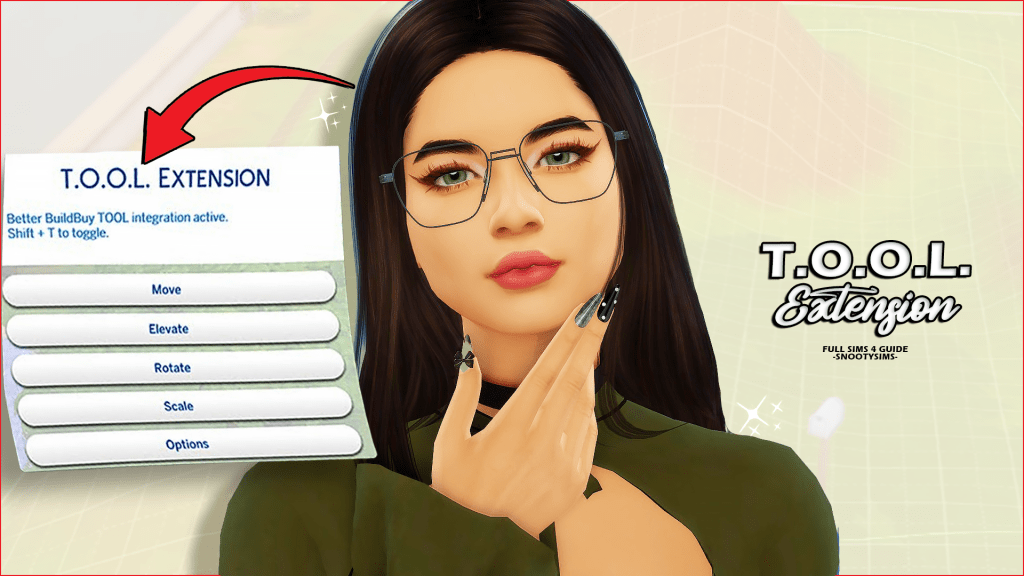
This tutorial breaks down everything you need to know about the T.O.O.L. Extention for the Sims 4
Conclusion
T.O.O.L. is a unique addition to the gameplay that promises and delivers more interactions and helps you move anything anywhere you like. It allows you to go way beyond the borders of active lot limits, and leaves furniture, decor, and other objects in the open world. Although it takes a little practice to master it and use it quicker, it is undoubtedly worth it. In the end, it’s up to you to decide whether or not you’ll benefit from any mod, including this. Have fun and happy Simming!